
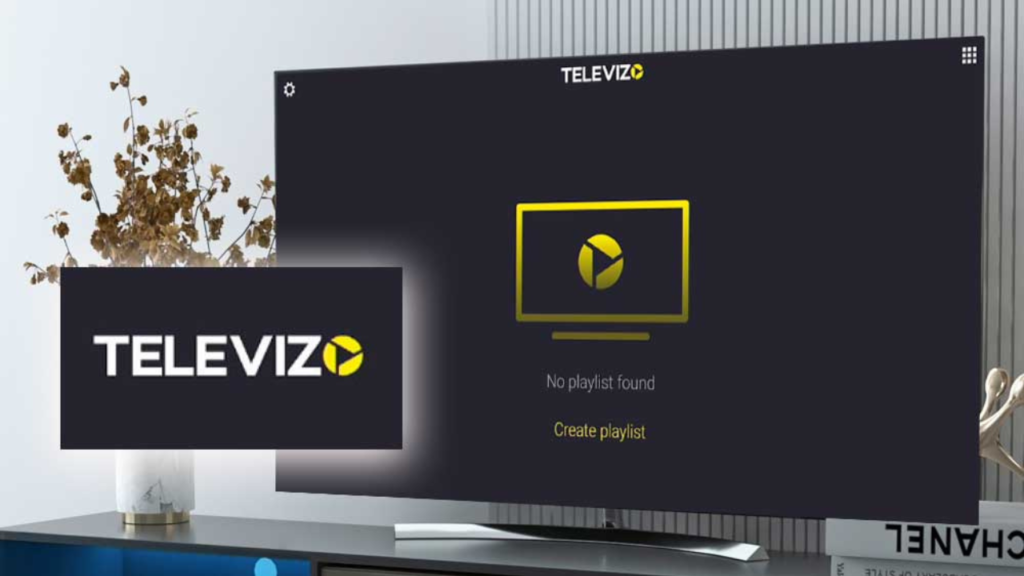
This guide explains how Televizo works from start to finish. It covers how to download and install the app on supported devices, how to add IPTV playlists, how Televizo accounts and Premium features work, and how to fix common issues such as playlist errors or app crashes. The goal is to provide clear, accurate instructions in one place so Televizo can be used correctly without confusion.
What Is Televizo?

Televizo is an IPTV player designed for Android-based devices, including Android TV, Firestick, and Android phones and tablets.
It allows users to play IPTV playlists provided by third-party IPTV services but does not include any TV channels or content on its own.
As an IPTV player, Televizo supports common playlist formats such as M3U and Xtream Codes. Once a playlist is added, the app organizes channels into groups and displays program information through an electronic program guide, if the IPTV provider supplies EPG data.
Televizo focuses on providing a simple interface with support for multiple playlists, favorites, parental controls, subtitles, and audio track selection. It is commonly used as an alternative IPTV player for users who want a lightweight app that works across Android TV and Firestick devices.
Understanding that Televizo is only a media player and not an IPTV service helps avoid most setup and login confusion.
How to Download and Install Televizo
Televizo can be installed on Android-based devices using either the Google Play Store or a manual APK install, depending on the platform. The correct installation method depends on the device you are using.
Firestick (Manual Install)
Televizo is not available in the Amazon Appstore, so it must be installed manually on Firestick devices.
- From the Firestick home screen, go to Settings and open My Fire TV.
- Select Developer Options and enable Apps from Unknown Sources.
- Install the Downloader app from the Amazon Appstore.
- Open Downloader and use this Downloader code “474318” to download the Fire TV–compatible APK.
- Download the APK and follow the on-screen prompts to install the app.
After installation, Televizo will appear in your apps list and can be opened like any other Firestick app.
Android TV (Play Store)
On Android TV and Google TV devices, Televizo can be installed directly from the Google Play Store.
- Open the Google Play Store on your Android TV device.
- Search for Televizo – IPTV player.
- Select the app and choose Install.
Once installed, open the app and continue with playlist setup.
Windows (Emulator or Unsupported)
Televizo does not have a native Windows application. If you want to use Televizo on a Windows PC, the only practical option is to run the Android version using an Android emulator such as BlueStacks or a similar tool.
Performance and stability may vary when using emulators, and this method is not officially supported by Televizo. For the best experience, the app is recommended for Android-based devices only.
Roku (Important Limitation)
Televizo is not officially supported on Roku devices. Although some apps in the Roku Channel Store use similar names, they are not the same Televizo IPTV player discussed in this guide.
If you want to use Televizo on a TV connected to a Roku device, you will need to use an external Android TV box or Firestick instead.
How to Use Televizo
Televizo does not require a traditional login to start watching content. Instead, the app works by adding an IPTV playlist provided by your IPTV service. Once a playlist is added, channels and program data load automatically.
Adding a Playlist
When you open Televizo for the first time, you will be prompted to create a playlist.
- Open the app and select Create Playlist.
- Choose the playlist type provided by your IPTV service.
- Enter the required playlist details and confirm.
After the playlist loads, Televizo will display the available channels grouped by category.
Xtream Codes vs M3U
Televizo supports two common playlist formats.
Xtream Codes uses a server address, username, and password. This option is often easier to manage because it automatically organizes live TV, movies, and series if the IPTV provider supports it.
M3U uses a single playlist URL. This format is widely supported but may require additional setup for features like the program guide or video-on-demand categories.
Your IPTV provider will tell you which format to use. Both work the same inside Televizo once added correctly.
EPG Basics
The Electronic Program Guide, or EPG, shows current and upcoming program information for live TV channels. In Televizo, the EPG is usually included with the playlist and loads automatically.
If the EPG does not appear or looks incomplete, you can refresh it from the app settings. Keep in mind that EPG data comes from the IPTV provider, not from Televizo itself, so missing or incorrect guide information is usually a provider-side issue.
Televizo Premium Explained
Televizo can be used for free, but some features are limited unless you upgrade to Televizo Premium. Understanding what Premium does and does not include helps avoid confusion before purchasing.
Free vs Premium
The free version of Televizo allows you to add playlists, watch live TV, browse channels, and use basic playback features. For many users, this is enough to test the app and confirm that their IPTV service works correctly.
Televizo Premium removes restrictions found in the free version and unlocks additional features designed for regular or advanced users. Premium is linked to a Televizo account and can be used on multiple devices within the allowed limit.
What Premium Unlocks
With Televizo Premium, users gain access to features such as:
- Removal of in-app advertisements
- Automatic full-screen playback
- Playlist backup and restore
- Parental control options
- Additional customization and advanced settings
Premium also allows better management of playlists and devices when used together with the Televizo Companion app.
What It Does Not Include
Televizo Premium does not provide TV channels, movies, or series. It does not include an IPTV subscription, playlists, or access to paid content. An external IPTV service is still required, regardless of whether you use the free or Premium version of the app.
Premium also does not bypass playlist limits or fix issues related to IPTV provider outages or expired subscriptions.
Televizo Not Working? Common Fixes
If Televizo is not working as expected, the problem is usually related to playlist errors, app stability, or confusion around how login works. Most issues can be resolved with a few basic checks.
Playlist Errors
Playlist problems are the most common cause of Televizo not working. In most cases, the issue comes from the IPTV service rather than the app itself.
If channels do not load or playlists fail to update:
- Double-check the playlist details provided by your IPTV service.
- Make sure the playlist or subscription has not expired.
- Reload the playlist from the app settings.
- Test your internet connection and restart your device if needed.
If the problem continues, contact your IPTV provider to confirm their servers are online.
App Crashing
If Televizo crashes, freezes, or fails to open, it is often caused by corrupted cache data or limited device resources.
To fix this:
- Restart the device.
- Clear the app cache from the device settings.
- Update Televizo to the latest version.
- Reinstall the app if the issue continues.
On older devices, closing background apps or reducing interface animations can improve stability.
Login Confusion
Televizo does not use a traditional login to play content. Users often mistake IPTV playlist credentials for an app account.
If Premium features are missing, make sure you are signed into the correct Televizo account and that the device is linked properly. Playlist usernames and passwords are separate and only apply to loading channels.
Understanding the difference between playlists and Premium accounts helps avoid most login-related issues.
Frequently Asked Questions
Does Televizo provide TV channels?
No. Televizo is only an IPTV player. It does not include live TV channels, movies, or series. You must add a playlist from a separate IPTV service to watch content.
Do I need a Televizo account to use the app?
No account is required to use the free version of Televizo. A Televizo account is only needed if you upgrade to Premium or want to manage devices and settings across multiple installations.
How many devices can I use with Televizo Premium?
Televizo Premium can be used on multiple devices, up to the allowed device limit. Device management is handled through the Televizo account or Companion app.
Is Televizo available on Firestick?
Yes, Televizo can be installed on Firestick using a manual APK install. It is not available in the Amazon Appstore, so a sideloading method is required.
Can I use Televizo on Roku?
No. Televizo is not officially supported on Roku devices. Apps with similar names in the Roku Channel Store are not the same IPTV player.
Does Televizo work on Windows?
Televizo does not have a native Windows version. It can only be used on a Windows PC through an Android emulator, which is not officially supported.
Why is my playlist not loading in Televizo?
Playlist issues are usually caused by incorrect credentials, expired subscriptions, or IPTV provider outages. Televizo cannot fix provider-side problems.
Conclusion
Televizo is a simple and reliable IPTV player when it is set up correctly, but most issues come from misunderstandings around playlists, device support, or account usage. Knowing where to download the app, how to add a playlist, and what Premium features actually do makes a significant difference in how smoothly it runs.
By following the steps in this guide, you should be able to install Televizo on supported devices, configure it properly, and troubleshoot common problems when they occur. With a valid IPTV playlist and correct setup, Televizo provides a straightforward way to watch IPTV on Android-based devices and Firestick.