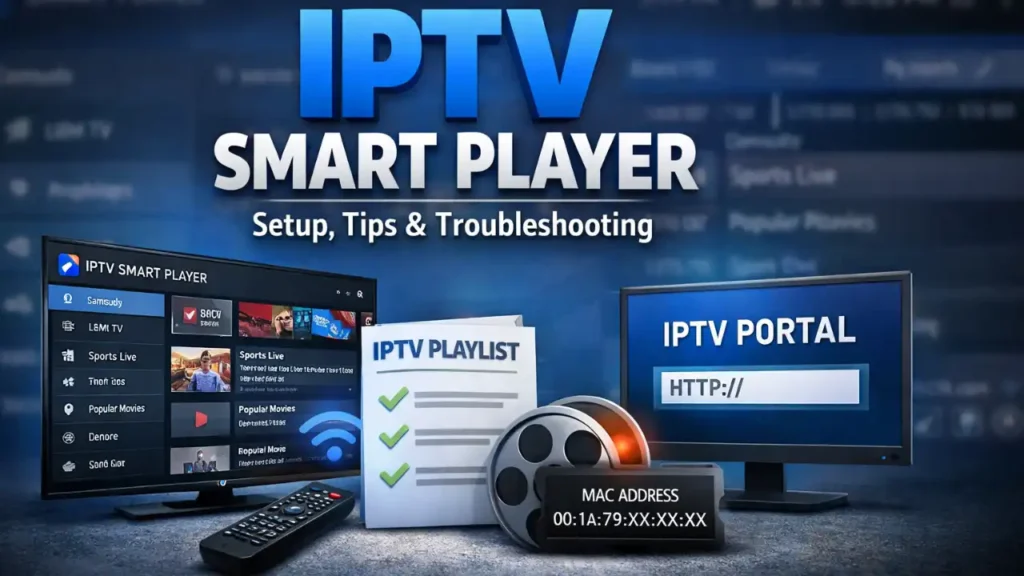
This guide explains how IPTV Smart Player works, how to install it on supported devices, and how to set it up using an IPTV playlist. It also covers common problems such as app errors, buffering, and device compatibility issues. The aim is to provide clear and accurate information so the app can be used correctly without confusion.
What Is IPTV Smart Player?
IPTV Smart Player is an IPTV player, not an IPTV service. It is an app designed to play IPTV playlists provided by third-party IPTV providers. The app itself does not include TV channels, movies, or series.
To use IPTV Smart Player, you must add a playlist from an external source. This playlist usually comes in the form of an M3U link or Xtream Codes login details and contains the channels and content made available by your IPTV provider. Without a playlist, the app will not display any content.
IPTV Smart Player’s role is limited to organizing and playing the content supplied through the playlist. It does not host streams, sell subscriptions, or offer access to free channels. Understanding this helps avoid most setup and login confusion.
IPTV Smart Player Supported Devices
IPTV Smart Player is often confused with Android-based IPTV apps, but it is not designed to run on every platform. Device compatibility is limited, and understanding this upfront prevents installation issues.
Samsung Smart TV
IPTV Smart Player is supported on Samsung Smart TVs. It can be installed directly from the Samsung Smart Hub / Samsung App Store on compatible Samsung TV models. This is the primary platform IPTV Smart Player is built for and where it works as intended.
LG Smart TV
IPTV Smart Player is not supported on LG Smart TVs. LG TVs run webOS, which does not support this app. There is no official LG version available in the LG Content Store.
To use IPTV Smart Player on an LG TV, an external device such as a Samsung Smart TV or a compatible streaming device is required.
Android TV and Firestick
IPTV Smart Player does not support Android TV or Firestick. It is not available on the Google Play Store for Android TV devices and cannot be installed using an APK on Firestick.
Apps that appear similar on Android devices are different IPTV players and should not be confused with IPTV Smart Player.
Windows
IPTV Smart Player does not have a native Windows application. It cannot be installed directly on a Windows PC.
Some users run IPTV Smart Player through a web interface or Android emulator, but this is not officially supported and may result in limited functionality or performance issues.
Roku
IPTV Smart Player is not supported on Roku devices. Roku uses a closed app ecosystem, and IPTV Smart Player is not available in the Roku Channel Store.
If you want to use IPTV Smart Player on a TV connected to a Roku device, a Samsung Smart TV or another supported platform is required.
How to Install IPTV Smart Player on Samsung Smart TV
IPTV Smart Player can be installed directly on supported Samsung Smart TVs using the Samsung App Store. No sideloading or external devices are required.
- Turn on your Samsung Smart TV and press the Home button on the remote.
- Open Apps to access the Samsung App Store.
- Use the search function and type IPTV Smart Player.
- Select the app from the search results and choose Install.
- Once the installation is complete, open the app from the Apps menu.
After launching IPTV Smart Player for the first time, you will be prompted to add an IPTV playlist or activation details provided by your IPTV service. The app is now ready for setup and use on your Samsung Smart TV.
IPTV Smart Player Pro Explained
Some versions of IPTV Smart Player offer a paid upgrade called Pro. This section explains the difference between the free and Pro versions, what features Pro typically unlocks, and what the Pro version does not include.
Free vs Pro
The free version of IPTV Smart Player allows you to install the app and add IPTV playlists. You can use basic playback features and navigate channels with a playlist that you provide. For many users, the free version is sufficient to test compatibility and confirm that their IPTV service works with the player.
The Pro version refers to a paid upgrade available within the app or through the app store. Pro is designed for users who want additional functionality beyond the basics provided in the free version. The exact pricing and purchase method can vary depending on the platform and app store.
What Pro Unlocks
Upgrading to Pro typically removes limitations found in the free version. Common features that Pro may unlock include:
- Removal of advertisements or in-app ads
- Access to additional settings or customization options
- Ability to save or manage multiple playlists
- Enhanced playback controls
- Priority support or feature updates
The specific features available in Pro depend on the app version and developer implementation, so users should check the in-app information or app store listing before purchasing.
What It Does Not Include
IPTV Smart Player Pro does not provide the following:
- TV channels, movies, or series
- Subscriptions to any IPTV service
- Access to paid content from IPTV providers
- Any channel sources on its own
Even with Pro enabled, you still need a valid IPTV playlist from a third-party provider. Pro only affects the player’s capabilities, not the availability of content.
How to Use IPTV Smart Player
IPTV Smart Player does not use a traditional username and password login. Instead, it works by linking the app to an IPTV service using playlist details or device-based activation. Once the app is activated, channels load automatically.
Playlist Setup
When you open IPTV Smart Player for the first time, you will be prompted to add a playlist or activate the app.
Depending on the IPTV service, this may involve:
- Entering playlist details directly inside the app, or
- Activating the app externally using a portal URL and device identifier
Once the playlist is connected, the app will load available channels and display them in a list or guide view.
Portal URL
Many IPTV providers require a portal URL instead of a traditional playlist link. The portal URL is a server address provided by your IPTV service and is used to connect the app to their system.
To set this up:
- Enter the portal URL in the IPTV Smart Player setup screen.
- Confirm the details and allow the app to connect.
The portal URL tells IPTV Smart Player where to retrieve channel data and stream information.
MAC-Based Activation
IPTV Smart Player commonly uses MAC-based activation rather than account logins. Each installation generates a unique MAC address that identifies the device.
To activate the app:
- Open IPTV Smart Player and locate the MAC address shown on the screen.
- Log in to your IPTV provider’s website or dashboard.
- Enter the MAC address to link the device to your subscription.
After activation, restart the app. If the subscription is valid, channels should load automatically.
This activation method is controlled by the IPTV provider, not the app itself. If channels do not appear, the issue is usually related to the provider account rather than IPTV Smart Player.
IPTV Smart Player Not Working? Common Fixes
If IPTV Smart Player is not working, the issue is usually related to playlist activation, network connectivity, or provider-side problems. The app itself is often not the source of the failure.
Channels Not Loading
When the app opens but no channels appear, the most common cause is an activation or playlist issue.
Check the following:
- Confirm that the portal URL or playlist details were entered correctly.
- Make sure the MAC address shown in the app is correctly registered with your IPTV provider.
- Verify that your IPTV subscription is still active.
After making changes, restart the app to allow it to reload the playlist.
App Opens but Shows Errors
If IPTV Smart Player opens but displays errors or fails to connect:
- Restart your TV or device.
- Check your internet connection and make sure it is stable.
- Try switching from Wi-Fi to a wired connection if available.
Temporary network interruptions can prevent the app from loading data correctly.
Buffering or Playback Issues
Buffering is usually related to the IPTV service or internet speed rather than the app.
To reduce buffering:
- Test your internet speed and network stability.
- Close other apps or devices using heavy bandwidth.
- Contact your IPTV provider if buffering continues across multiple channels.
App Crashing or Freezing
If the app crashes or freezes:
- Close and reopen the app.
- Check for available app or TV software updates.
- Reinstall the app if the issue continues.
On Smart TVs, performing a full restart can often resolve temporary software issues.
IPTV Smart Player Alternatives
If IPTV Smart Player does not meet your needs, other IPTV players may offer different interfaces, device support, or feature sets. Two widely used alternatives are TiviMate and Televizo.
TiviMate
TiviMate is an IPTV player focused on Android devices such as Android TV and Firestick. It offers a structured channel guide, multiple playlist support, and a range of customization and playback options. TiviMate can be a good choice if you prefer a more traditional TV-like experience or need advanced playlist management.
You can read more about it in our detailed guide: TiviMate Guide: Setup, Login, Premium & Fixes.
Televizo
Televizo is another IPTV player that supports Android devices and provides features like multiple playlist handling, EPG support, and parental controls. It is designed to work with external IPTV services and can be installed on devices where it is supported.
For complete setup instructions and troubleshooting, see our Televizo Guide: Install, Setup, Login & Fixes.
Frequently Asked Questions
Does IPTV Smart Player provide TV channels?
No. IPTV Smart Player does not include any TV channels, movies, or series. It is only a player and requires a playlist or activation details from an external IPTV service.
Do I need a login to use IPTV Smart Player?
IPTV Smart Player does not use a traditional username and password login. Most setups rely on a playlist, portal URL, or MAC-based activation provided by the IPTV service.
What is MAC-based activation in IPTV Smart Player?
MAC-based activation links the app to your IPTV subscription using a unique MAC address generated by the app. This MAC address must be registered with your IPTV provider for channels to load.
Can I use IPTV Smart Player on Android TV or Firestick?
IPTV Smart Player is primarily designed for Samsung Smart TVs. It is not officially supported on Android TV or Firestick, and APK installs may not work as expected.
Is IPTV Smart Player available on Windows?
There is no native Windows version of IPTV Smart Player. Some users run it through web portals or Android emulators, but this is not officially supported.
What does IPTV Smart Player Pro include?
The Pro version typically removes ads and unlocks additional features or settings. It does not include IPTV subscriptions or channels and does not replace the need for an external IPTV service.
Why is IPTV Smart Player not loading channels?
Channel loading issues are usually caused by incorrect portal URLs, unregistered MAC addresses, expired subscriptions, or IPTV provider outages rather than the app itself.
Conclusion
IPTV Smart Player is designed to work as a simple IPTV player, but it requires correct setup and a compatible device to function properly. Most issues users encounter come from misunderstanding device support, playlist activation, or MAC-based setup rather than problems with the app itself.
By understanding how IPTV Smart Player works, where it can be installed, and how to activate it with an IPTV service, you can avoid common errors and setup confusion. With the right configuration and a valid playlist, IPTV Smart Player can be used effectively on supported platforms.